17 Apr 2026
Post by Callie
Introduction
Customizing your MacBook screensaver is an easy and enjoyable way to add a personal touch to your device. Screensavers combine functionality and aesthetics by preventing screen burn-in and delivering a personalized display experience. Whether you use your MacBook for work or leisure, setting a screensaver that you love can enhance your interaction with the device. This guide offers a clear and concise method to change your MacBook screensaver effortlessly. Let’s explore how you can give your MacBook a fresh, personalized look.
Understanding MacBook Screensavers
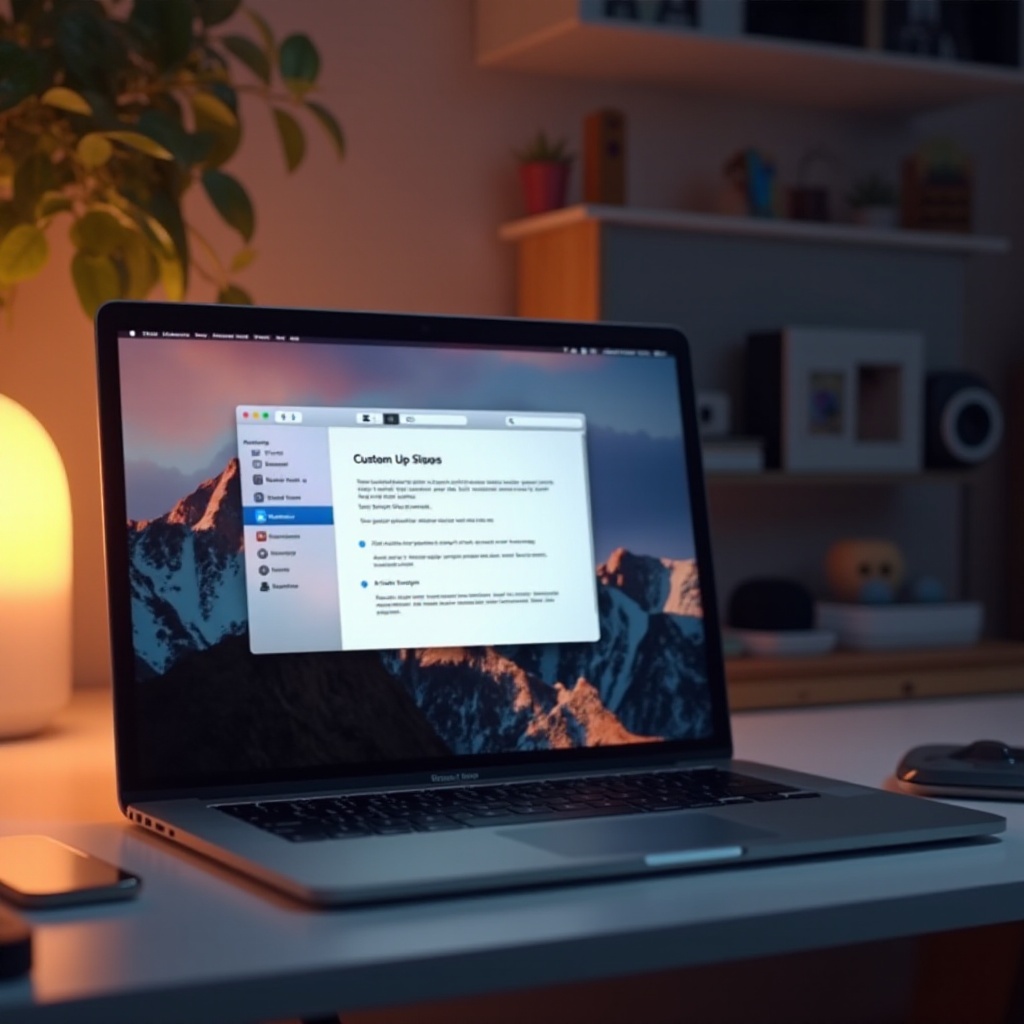
Screensavers began as a practical solution to prevent screen burn-in on older monitors and have since evolved into a platform for personal expression and enjoyment. In today’s MacBook environment, screensavers offer diverse options—from photo slideshows to dynamic animations, and even third-party applications designed to entertain.
What is a Screensaver?
A screensaver is a program that gets activated when a computer is idle, serving both as a protective measure and a source of visual interest. On a MacBook, a screensaver not only prevents static image burn-in but also consumes less energy by allowing the computer to idle efficiently. It transforms your screen into a canvas for art, memories, or professional branding, adding a new layer to your everyday MacBook experience.
Benefits of Using Screensavers on MacBooks
Screensavers do more than decorate your MacBook screen. Here are a few benefits they offer:
- Prevent Image Retention: While modern displays are less susceptible to image burn-in, screensavers still serve as a preventive tool.
- Enhance Personalization: Tailor your digital space to reflect your unique style or professional brand.
- Encourage Healthy Breaks: A moving display can serve as a gentle reminder to take breaks more frequently.
Now with a firm understanding of what screensavers can do, you’re ready to tailor your MacBook’s display to your liking.
Step-by-Step Guide to Changing Your MacBook Screensaver
Customizing your MacBook screensaver is straightforward when you know the steps. Let’s guide you through the process:
- Accessing System Preferences
- Click on the Apple logo located at the upper-left corner of your screen.
-
From the dropdown menu, select ‘System Preferences’.
-
Navigating to Desktop & Screen Saver Settings
- Within the System Preferences window, look for ‘Desktop & Screen Saver’.
-
Click on this to reveal two tabs: ‘Desktop’ and ‘Screen Saver’. Click on the ‘Screen Saver’ tab.
-
Selecting and Previewing Your Screensaver
- Browse through the various screensaver options listed on the left panel.
- Click on a screensaver to preview it in the main window to the right.
-
Select the one that best suits your style by clicking on it.
-
Customizing Screensaver Options
- After selecting a screensaver, click on ‘Screen Saver Options’ to access additional settings.
- You can adjust timings, animation styles, and choose to use your own pictures, transforming your screensaver into a personalized slideshow.
With these steps, your MacBook now displays a screensaver that might make your idle moments visually delightful.
Troubleshooting Screensaver Issues
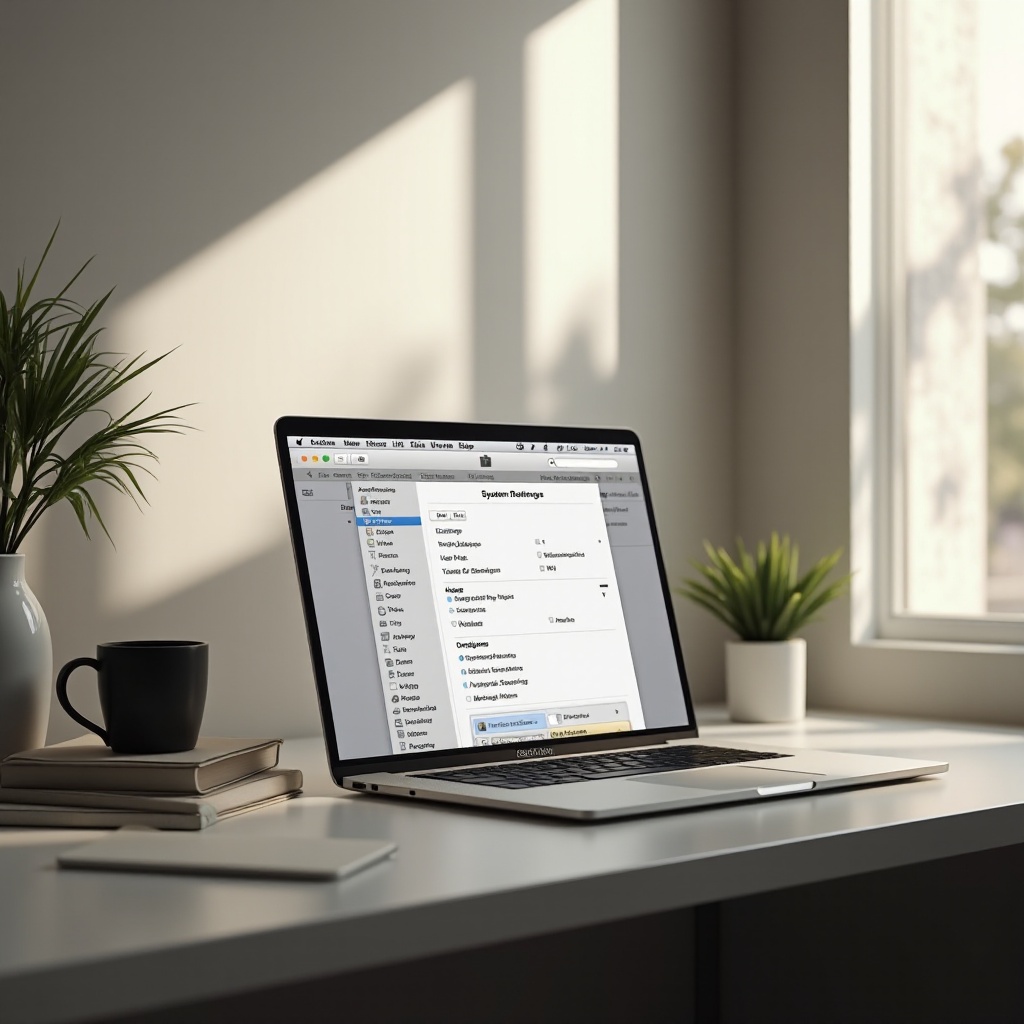
Occasionally, you may encounter issues while setting up your screensaver. Thankfully, most can be resolved quickly.
Screensaver Not Activating
If the screensaver fails to activate:
- Double check that the ‘Start After’ time is correctly set in System Preferences.
- Ensure no activities on your computer are preventing the screensaver, such as videos playing or music streaming.
Performance Considerations
Screensavers can sometimes affect MacBook performance:
- If you experience slowness, consider choosing a less resource-demanding screensaver.
- Avoid complex animations or 3D graphics, which might use additional system resources.
After smoothing out these issues, your MacBook’s screensaver should function seamlessly, enhancing its idle-time display.
Additional Tips for Personalizing Your MacBook Screensaver
Creating a screensaver that truly feels like it belongs on your MacBook might require a little extra personalization.
Using Personal Photos
- Compile a folder of your favorite images and set it as the screensaver source, which can rotate through your cherished memories every time the screensaver activates.
Exploring Third-Party Screensaver Options
- Explore the App Store for third-party screensavers that offer unique and interactive experiences.
- Ensure that any third-party software is reputable to maintain system integrity and performance.
These approaches help brand your MacBook with a screensaver that’s uniquely yours.
Conclusion
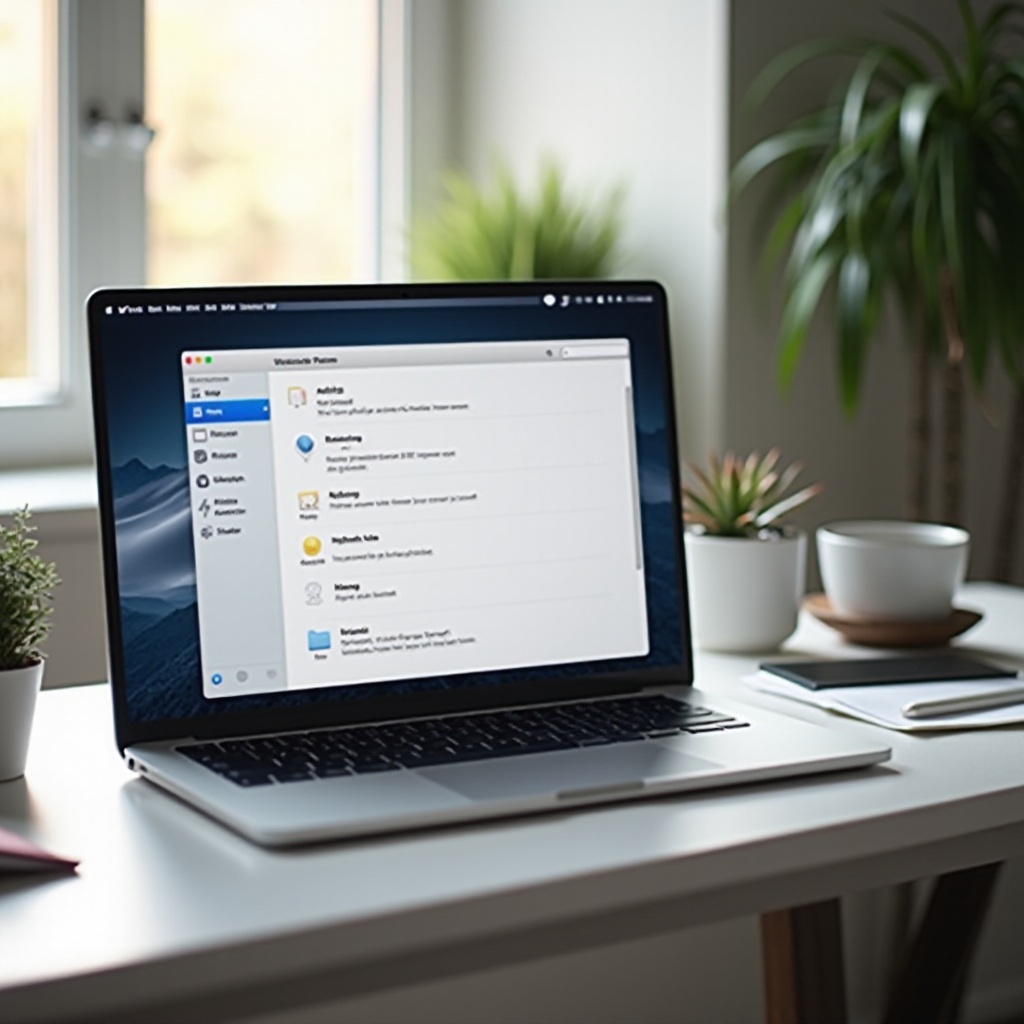
Customizing your MacBook screensaver is more than a change in visual element; it’s an opportunity to express yourself. By following straightforward steps, troubleshooting common issues, and exploring additional personalization, you can create an environment that’s comfortable and reflects your individuality. Dive into your MacBook’s settings and make your desktop come alive with a screensaver that speaks to you.
Frequently Asked Questions
How can I set my screensaver to activate after a specific time?
Navigate to ‘System Preferences’ > ‘Desktop & Screen Saver,’ and adjust the ‘Start after’ setting to your desired time.
Why is my MacBook’s screensaver resetting to default?
This could be due to system updates or errors. Try reselecting your desired screensaver and check for any macOS updates that might resolve persistent issues.
Can I use a video as my MacBook screensaver?
macOS natively does not support videos as screensavers. However, third-party applications can allow videos to run as screensavers if desired, but ensure compatibility and security.