12 Dec 2025
Post by Callie
Introduction
Having your Samsung TV not turn on, with a stubborn red light staring back at you, can be quite frustrating. Fortunately, understanding what this red light signifies and how you can troubleshoot it helps restore your device functionality. In this guide, we will walk you through various solutions and preventive measures to tackle this common issue effectively.
Understanding the Red Light Indicator
Seeing the red light on your Samsung TV can initially be a cause for concern, as it’s intended to signal an issue that needs attention. But before jumping to conclusions, it’s important to decode what this indicator truly means.
What the Red Light Means
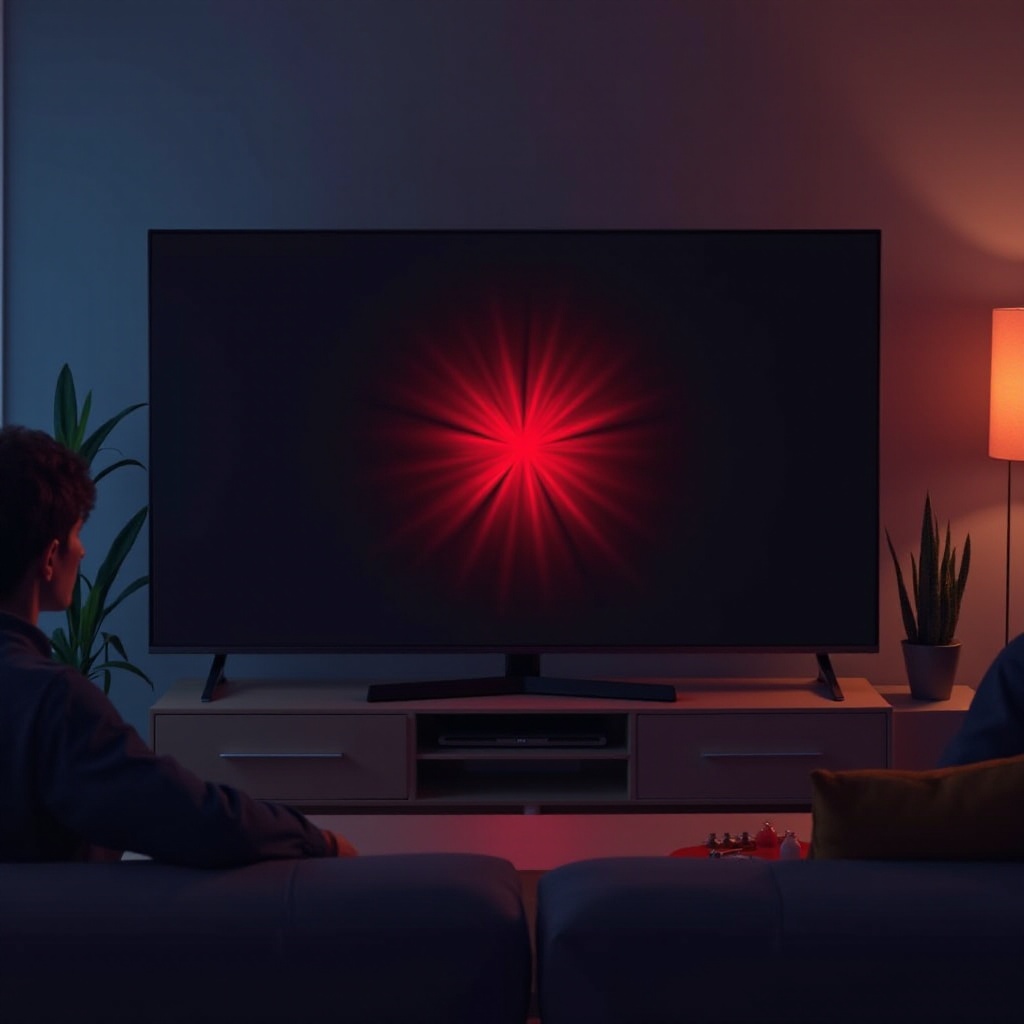
Generally, the red light signifies that your TV is in standby mode. However, if it continues to blink or stay on without the TV turning on, it might indicate power system or internal hardware issues that require your action. Understanding this can ease anxiety and guide you to a logical solution.
Common Problems Indicated by the Red Light
- Power Supply Issues: Problems could originate from the power source or within the internal components.
- Firmware Glitches: Software issues might prevent the TV from functioning correctly.
- Hardware Failures: Critical components like the motherboard or power supply board may be at fault.
Exploring these problems leads you to effective solutions, beginning with basic troubleshooting.
Initial Troubleshooting Steps
Before delving into complex fixes, start with some basic checks. Often, these simple steps will resolve the issue quickly.
Checking the Power Source and Outlet
- Verify the Plug: Ensure your TV is properly plugged into a working outlet.
- Test the Outlet: Confirm if the outlet is functional by plugging in another device.
- Use a Different Outlet: If the outlet seems faulty, try another one.
Inspecting the Power Cable and Connections
- Check for Damage: Look for any visible wear and tear on the cable.
- Secure Connections: Ensure all cables are firmly connected.
- Consider Replacement: Replace cables if damage is evident.
These initial steps serve to either resolve or rule out simple power issues, allowing you to proceed with more targeted interventions.
Advanced Troubleshooting Techniques
Should basic solutions fall short, advanced troubleshooting is the next logical step. These involve deeper interaction with the TV’s software settings.
Performing a Soft Reset and Power Cycle
- Unplug the TV from the electrical outlet.
- Wait 30 seconds, then plug it back in and turn it on.
- A soft reset can resolve many minor glitches effortlessly.
Updating Firmware and Software
- Check Samsung’s Website: Look for firmware updates for your specific model.
- Download and Install: Follow instructions to update your firmware.
- Update Regularly: Ensuring software is up-to-date helps prevent software-induced issues.
Resetting the TV to Factory Settings
- Access Settings: If the TV powers on intermittently, navigate to settings.
- Perform Factory Reset: Follow the guide to reset your TV to original settings.
- Backup Data: Remember, this will erase personalized settings.
Advanced troubleshooting tactics often resolve deeper system or software malfunctions. If they do not, you may be dealing with a hardware issue.
Addressing Hardware Concerns
Persistent issues may signal internal hardware failures, requiring further investigation or professional intervention.
Signs of a Faulty Power Supply or Motherboard
- Non-responsive TV: A sign of motherboard failure.
- Blinking Power: Indicates issues with the power supply board.
- Check Components: If knowledgeable, inspect these areas carefully.
When to Seek Professional Repair Services
- Contact Support: If troubleshooting fails, consult Samsung Support.
- Professional Diagnose: A technician can accurately diagnose and fix complex issues.
- Avoid DIY on Critical Issues: Incorrect handling can exacerbate problems.
Determining when to seek professional help ensures that potential damages are mitigated efficiently and safely.
Preventive Maintenance Tips
By adopting preventive measures, you can significantly decrease the likelihood of encountering such issues in the future.
Tips for Avoiding Future Issues
- Regular Cleaning: Remove dust to prevent overheating.
- Ensure Ventilation: Position TV for optimal airflow.
- Use Surge Protectors: Protect against electrical surges.
Proper Care and Cleaning of Your Samsung TV
- Use Microfiber Cloth: Clean the screen without scratching.
- Avoid Harsh Chemicals: Use approved cleaning solutions.
- Gentle Handling: Move and position with care.
Conclusion
Resolving Samsung TV red light issues involves a mix of simple checks and more comprehensive troubleshooting. By understanding the cause, applying solutions, and engaging in regular maintenance, you ensure the longevity and optimal performance of your television.
Frequently Asked Questions
Why is my Samsung TV blinking red and not turning on?
A blinking red light often signifies a power-related issue or a software glitch. Check power connections, reset the TV, and update firmware to resolve it.
How do I reset a Samsung TV that won’t turn on?
Performing a soft reset by unplugging the TV for a short period can help. For a more thorough reset, refer to the manual for the specific steps to reset your TV model.
Can a power surge cause my Samsung TV to stop working?
Yes, power surges can damage internal components, leading to operational issues like the red light fault. Using a surge protector mitigates this risk.