29 May 2026
Post by Callie
Introduction
Switching between iMessage and text messaging on your iPhone is crucial for optimal communication. Whether dealing with poor internet connectivity, messaging non-Apple users, or traveling abroad, understanding how to send an iMessage as a text message can streamline your communication experience. This comprehensive guide will walk you through the process, ensuring you always remain connected.
Understanding iMessage and SMS
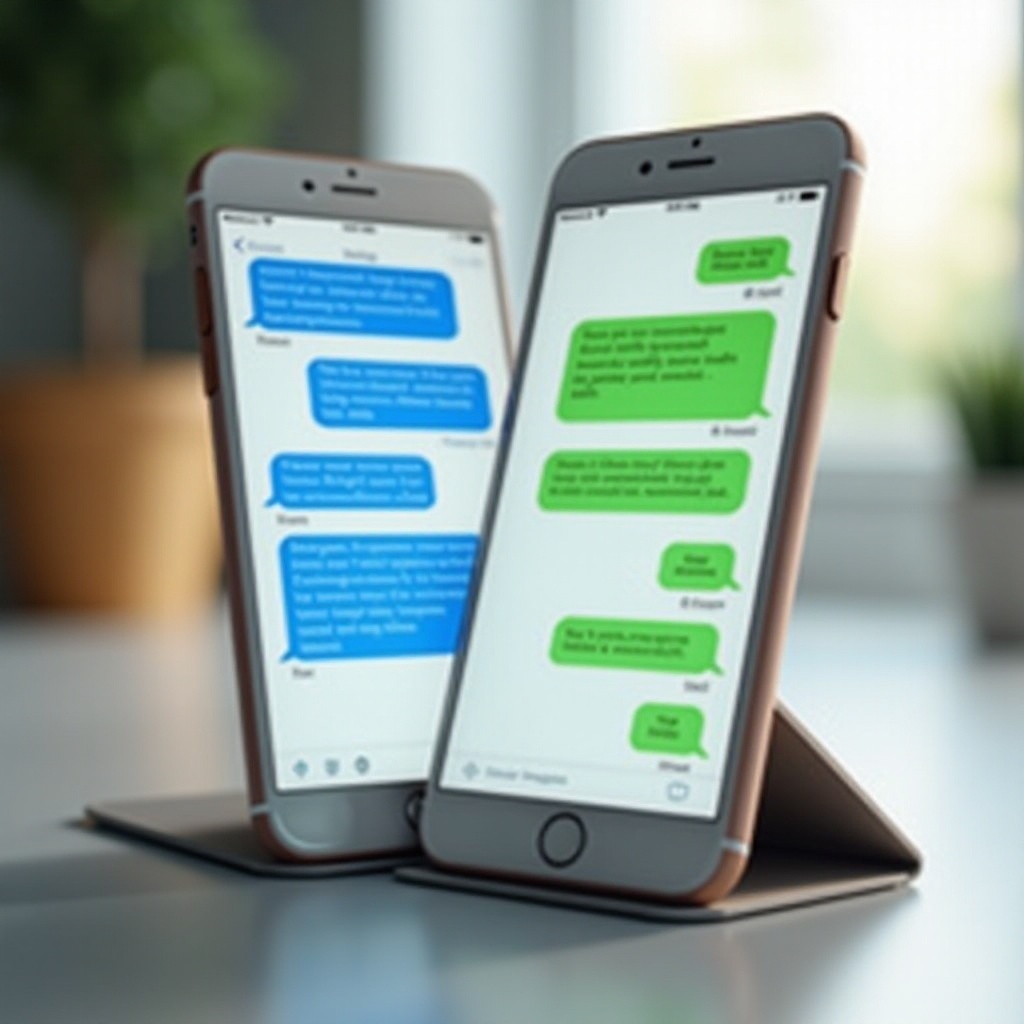
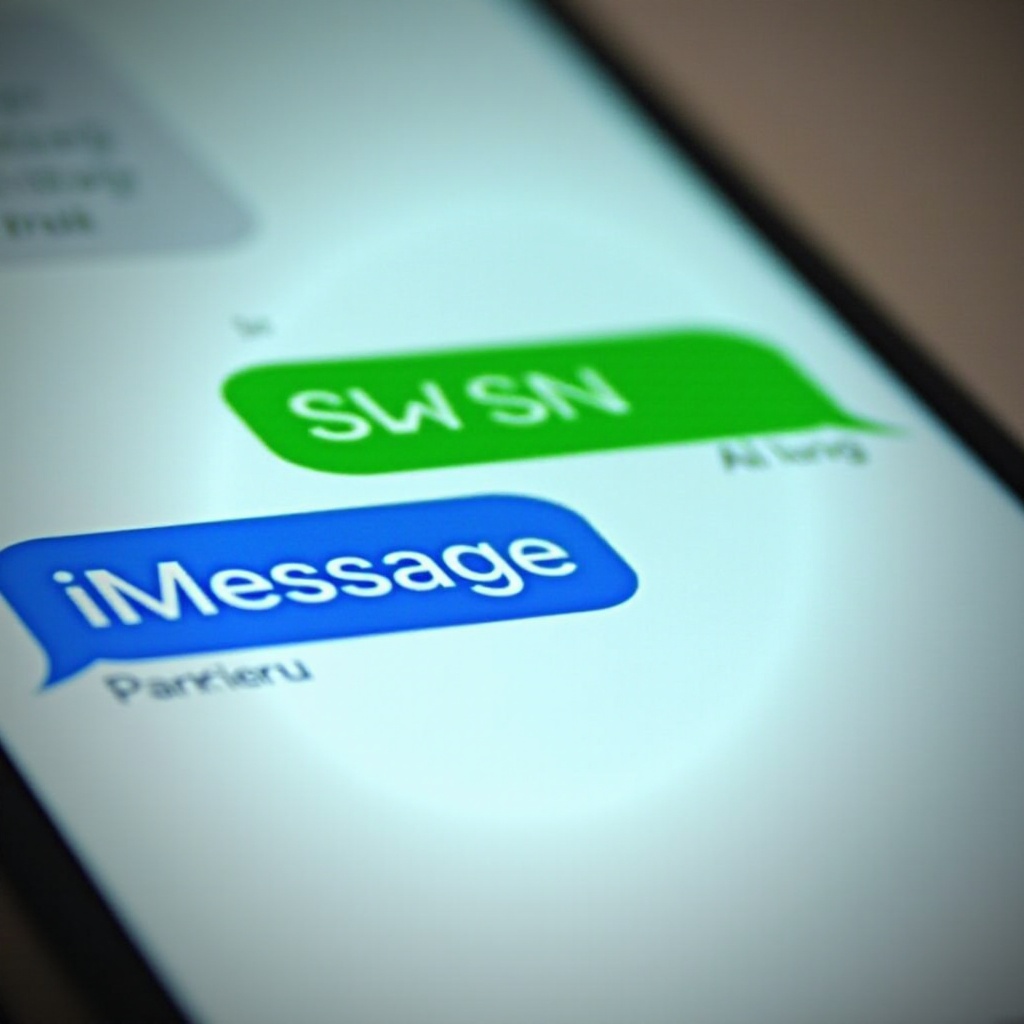
To effectively manage your messaging options, it’s essential to grasp the differences between iMessage and SMS. iMessage, exclusive to Apple devices, leverages internet connectivity to provide advanced features such as read receipts, multimedia support, and end-to-end encryption. SMS, however, is a universal text messaging protocol that utilizes the carrier’s network, allowing communication across all mobile devices.
Understanding these differences lays the groundwork for determining the best messaging approach in any scenario, reinforcing your readiness to toggle between iMessage and SMS effectively.
Step-by-Step Guide to Sending iMessages as Text Messages
Switching from iMessage to SMS can be achieved quickly by adjusting a few settings:
- Enabling ‘Send as SMS’ on iPhone:
- Navigate to the Settings app.
- Tap on Messages.
-
Activate the Send as SMS toggle to allow messages to be sent as texts when iMessage is unavailable.
-
Manually Changing iMessage to Text Message for Individual Conversations:
- Open your Messages app and find the specific conversation.
-
Compose your message. If iMessage fails to deliver, press and hold the message bubble, selecting Send as Text Message from the prompt.
-
Configuring Automatic SMS Fallback:
- Ensure your cellular data is active via Settings > Cellular > Cellular Data.
- With the Send as SMS setting enabled, messages seamlessly switch to SMS when connectivity falters.
These adjustments secure consistent message delivery, connecting you effortlessly with your contacts.
Troubleshooting Common Messaging Issues
Even with settings adjusted, messaging issues may arise. Quick troubleshooting can resolve these disruptions effortlessly.
- iMessage Not Sending – Possible Causes and Fixes:
- Cause: iMessage activation problems can occur.
-
Fix: Check your network connection. In Settings > Messages, toggle iMessage off and on again to refresh settings.
-
Cause: Outdated software.
-
Fix: Update your iPhone through Settings > General > Software Update.
-
Ensuring SMS Delivery Without Internet:
- Confirm you have cellular signal and network availability.
- Restart your iPhone if necessary. Hold the power button, slide to power off, and reboot to refresh network settings.
These solutions tackle frequent issues, ensuring uninterrupted messaging. Troubleshooting prepares you for seamless transitioning between iMessage and SMS, optimizing your communication strategy.
Benefits of Using SMS Over iMessages in Certain Situations
While iMessage offers robust features, SMS prevails under specific circumstances. It’s an efficient alternative when international messaging costs are a concern, especially without a Wi-Fi connection. SMS ensures compatibility, making it easier to reach users on any mobile platform. Moreover, in rural areas with poor internet, SMS provides reliable and quick communication.
Recognizing when to utilize SMS can enhance your messaging efficiency, empowering you to navigate various environments seamlessly.
Conclusion
Mastering the switch from iMessage to SMS involves minor settings adjustments but offers significant benefits. By understanding each messaging option, configuring your iPhone correctly, and adopting troubleshooting practices, you ensure consistent and effective message delivery. Embrace these strategies to optimize your communication experience, remaining connected no matter the circumstance.
Frequently Asked Questions
How can I ensure my iMessages automatically turn into SMS when needed?
Enable the ‘Send as SMS’ option in your iPhone’s settings to allow automatic switching when iMessage is unavailable.
What should I do if my iPhone still sends iMessages instead of SMS?
Verify your network connection and cellular data settings. Restart your messaging app or phone if issues persist.
Can I use SMS internationally without extra charges?
International SMS may incur charges based on your carrier’s plan. Check rates or use Wi-Fi for cost-effective messaging.