22 May 2026
Post by Callie
Introduction
Red lines on an iPhone screen can disrupt your device experience, affecting both its appearance and functionality. Swiftly identifying and resolving the issue is crucial for maintaining optimal device performance. Whether these lines are due to hardware defects or software malfunctions, understanding and taking corrective actions is key. In this guide, we provide practical solutions and preventive measures to help you handle and avoid red lines on your iPhone screen effectively.
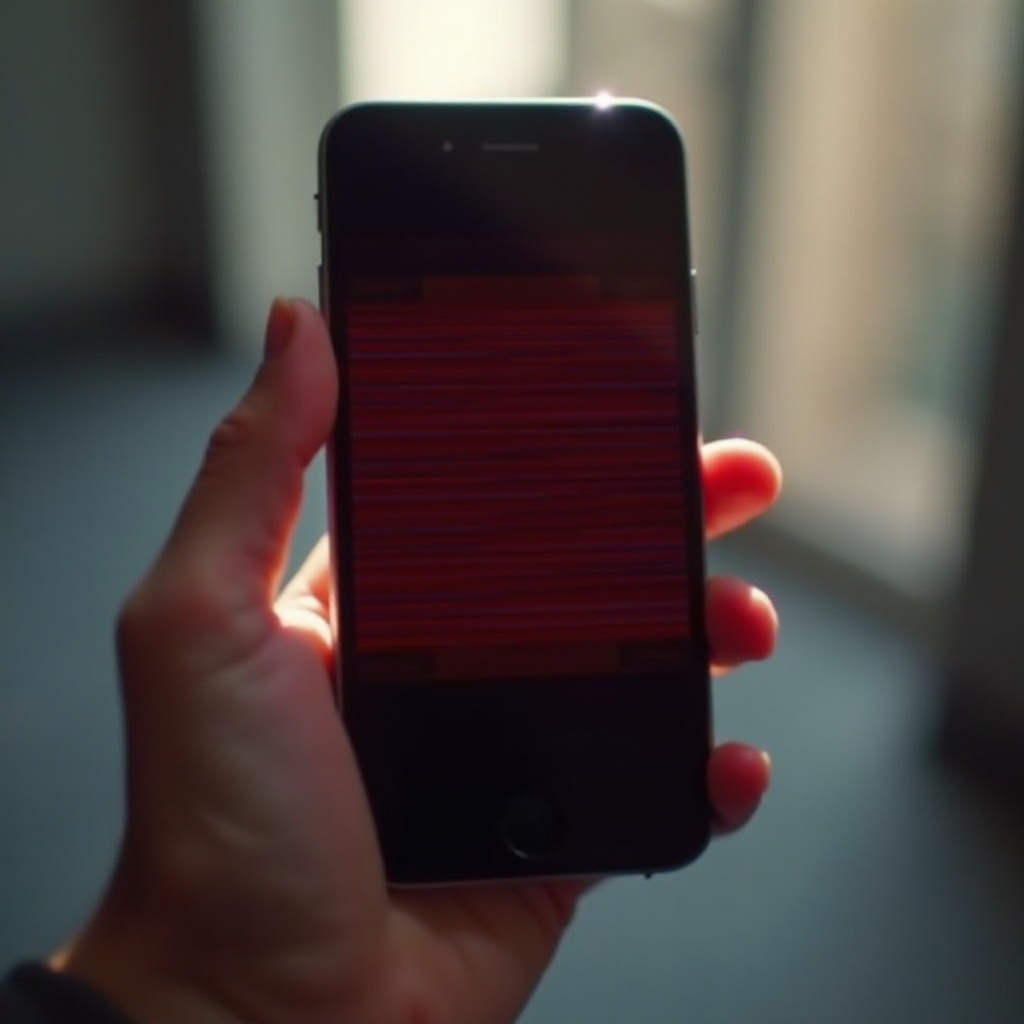
Understanding the Red Lines Problem
These pesky lines are not just an aesthetic concern; they often hint at deeper issues that demand prompt attention to preserve your iPhone’s health and functionality.
Common Symptoms
Identifying the symptoms accurately is vital to addressing the issue efficiently:
1. Vertical or horizontal lines appearing suddenly.
2. Flickering red lines during usage.
3. Lines intensifying over time or after device use.
4. Lines appearing post drop or impact.
These symptoms often point to either a hardware issue with the screen or an underlying software glitch.
Potential Causes
Diagnosing the root cause helps in selecting the appropriate solution:
- Hardware Damage: Physical impacts, such as drops, can damage the LCD or disrupt internal connections.
- Software Glitches: Operating system bugs might be the culprit, often resolvable through updates.
Understanding these causes is the first step in devising an effective plan of action.
Initial Troubleshooting Steps
Before opting for a costly repair, attempt these basic troubleshooting steps to resolve the issue:
Restart Your iPhone
Many minor glitches including red lines can be fixed by a simple restart:
1. Hold either the volume button and the side button until the power off slider appears.
2. Drag the slider and wait for 30 seconds for the device to turn off.
3. Turn the device back on by pressing the side button until seeing the Apple logo.
Update iOS
Keeping your OS updated can fix bugs and glitches:
1. Connect to Wi-Fi.
2. Navigate to Settings > General > Software Update.
3. If an update is available, select ‘Download and Install’.
Updating ensures you have the latest system patches to address display errors.
Advanced Solutions for Red Lines
If basic troubleshooting fails, consider these advanced approaches to address the issue:
Perform a Factory Reset
This step, which deletes personal data, can resolve software-related issues:
1. Open Settings > General > Transfer or Reset iPhone.
2. Choose ‘Erase All Content and Settings’.
3. Follow the onscreen prompts to complete the reset.
Using DFU Mode
For a more comprehensive reset, DFU mode might be necessary:
1. Connect the device to a computer and open iTunes or Finder.
2. Force restart by quickly pressing and releasing the Volume Up button, then the Volume Down button.
3. Hold the Side and Volume Down buttons simultaneously for 5 seconds.
4. Release the Side button but hold the Volume Down button until your device appears in iTunes or Finder under recovery mode.
DFU mode refreshes both software and firmware providing a thorough reset.
When to Seek Professional Help
If self-help strategies prove ineffective, it might be time to consult a professional.
Assessing Damage Severity
Evaluate whether damage requires professional attention:
1. Inspect for significant physical damage needing part replacement.
2. Confirm if lines persist post-software refresh, indicating hardware issues.
Selecting a Repair Service
Choose a credible service provider for quality repairs:
1. Official Apple Stores offer reliable diagnostics and repairs.
2. Authorized repair centers ensure genuine replacement parts and skilled repairs.
Choosing the right professional service ensures the issue is accurately diagnosed and efficiently rectified.

Preventative Measures to Avoid Red Lines
Maintaining your device’s condition with preventive practices can save future headaches.
Screen Protectors and Cases
Protect your device from potential damage:
– Screen protectors deter scratches and minor impacts.
– Durable cases guard against drops and direct hits.
Proper Device Handling
Adopt these tips to extend your device’s life:
– Avoid prolonged exposure to sunlight and extreme conditions.
– Keep the device away from moisture and high humidity.
– Secure your grip, particularly when capturing photos or multitasking.
Such measures ensure your iPhone remains resilient against potential screen issues.

Conclusion
Resolving red lines on your iPhone screen is essential for its performance and looks. By addressing the problem promptly through simple and advanced solutions, you restore both functionality and aesthetics. Regular maintenance and protective measures can prevent recurrence, ensuring your device remains a reliable tool in your daily life.
Frequently Asked Questions
Can I fix red lines on my iPhone screen myself?
Yes, basic troubleshooting like restarting or updating iOS can help, but professional repair may be needed for persistent issues.
How much does it cost to repair an iPhone screen with red lines?
Repair costs vary, but visiting an Apple Store or authorized center provides a reliable estimate after evaluating the damage.
What if the red lines reappear after repair?
If lines return, it indicates persistent issues that may require further professional assessment or a second opinion.