12 Jun 2026
Post by Callie
Introduction
Moving your photos from a MacBook to an iPhone is a task made simple with Apple’s integrated ecosystem. This guide will explore multiple methods to make sure your photos are readily available on your iPhone, allowing you to show them off, edit, or just keep them safely accessible. With options like iCloud, AirDrop, and Finder, you’ll find a solution that fits your needs.

Why Transfer Photos from MacBook to iPhone?
Having your photo collection mirrored on your iPhone means greater flexibility and convenience. Whether you enjoy editing photos on-the-go or having them for personal viewing, transferring photos makes them immediately accessible. It enhances your ability to share memories and ensures you have what you need, wherever you want.
Method 1: Using iCloud Photos
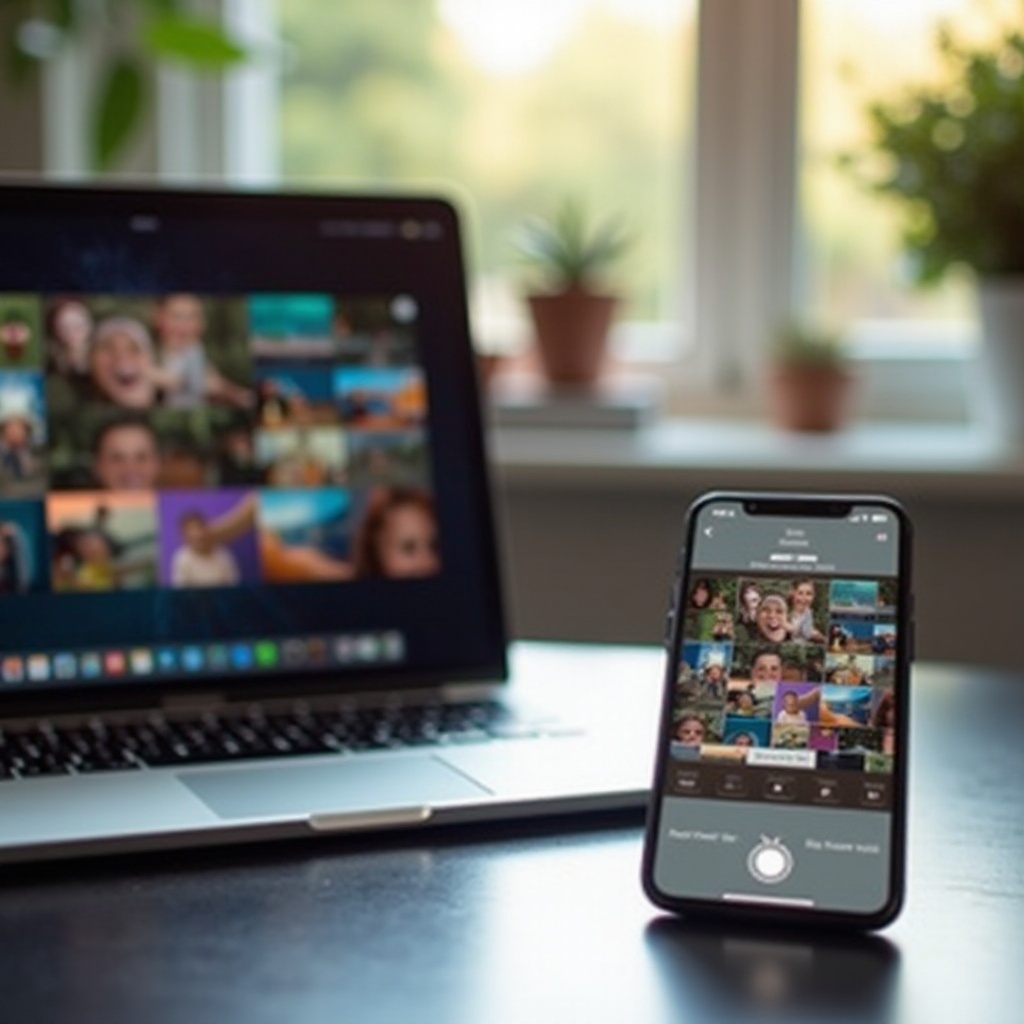
Utilizing iCloud Photos is a convenient way to keep your photos synchronized across devices.
- Setting Up iCloud on MacBook:
- Access ‘System Preferences’ on your MacBook.
- Click ‘Apple ID’ then select ‘iCloud’.
-
Enable ‘Photos’ for iCloud synchronization.
-
Enabling iCloud Photos on iPhone:
- Go to ‘Settings’ on your iPhone.
- Tap your name, then ‘iCloud’.
-
Activate ‘iCloud Photos’.
-
Managing iCloud Storage Effectively:
Consider upgrading your iCloud plan if your library is extensive. Regularly delete unwanted files and optimize your photos for storage efficiency.
This method ensures that you can switch between devices while maintaining access to your entire photo collection, providing seamless access.
Method 2: Using AirDrop for Instant Transfers
For quick photo transfers, AirDrop is unrivaled in its simplicity and speed. It works without the need for internet connectivity by using Bluetooth and Wi-Fi.
- Enabling AirDrop on MacBook and iPhone:
Enable Bluetooth and Wi-Fi on both devices. - On MacBook: Open ‘Finder’, navigate to ‘AirDrop’, and activate it.
-
On iPhone: Use ‘Control Center’ to set AirDrop visibility.
-
Step-by-Step Guide to Using AirDrop:
- Open the photos you want to transfer on your MacBook.
- Click the ‘Share’ button and select ‘AirDrop’.
- Choose your iPhone from the list of devices.
-
Confirm and receive on your iPhone.
-
Troubleshooting Common AirDrop Issues:
If you face issues, check your connections and AirDrop settings. Restarting devices often resolves persistent issues.
AirDrop’s ease of use makes it perfect for transferring small photo sets efficiently without needing cables or extensions.

Method 3: Transferring Photos via Finder (macOS Catalina and Later)
Using Finder provides a robust method to transfer large galleries reliably when a wired connection is more suitable.
-
Connecting iPhone to MacBook with Cable:
Use a USB cable to connect your iPhone to your MacBook. Authorize the connection on the iPhone. -
Steps to Use Finder for Photo Transfer:
- Launch ‘Finder’ and select your iPhone under ‘Devices’.
- Opt for ‘Photos’ then check ‘Sync photos to your device’.
- Choose the folder you want.
-
Click ‘Apply’ to transfer.
-
Benefits of Using Finder for Large Transfers:
This method is offline and beneficial for transferring large amounts of data, providing another layer of reliability.
Leveraging Finder is particularly beneficial for individuals dealing with extensive libraries that depend on stability and direct access.
Additional Tips for Successful Photo Transfers
Optimizing your photos by categorizing them into folders or albums prior to transferring can significantly improve organization on your iPhone. Alternative cloud solutions like Google Photos or Dropbox also provide options for backup and management if needed.
Expanding your options for photo transfers ensures that you can always find the right method for any particular situation, whether through storage management or quick transfers.
Conclusion
Synchronizing your photo libraries across your MacBook and iPhone is attainable and enhances your digital experience. Whether you decide to use iCloud Photos, AirDrop, or Finder, selecting the right solution for your specific use case ensures that convenience and access to your memories is never an issue. Embrace the versatility of these tools to unlock the full potential of seamless photo management.
Frequently Asked Questions
How can I transfer photos without using iCloud?
Use AirDrop for wireless transfer or connect via USB with Finder for a wired solution.
What should I do if AirDrop isn’t working?
Ensure Wi-Fi and Bluetooth are enabled, devices are within range, and restart if necessary.
Is it possible to transfer photos using other cloud services?
Yes, Google Photos and Dropbox offer cloud storage to access photos without iCloud.